
PurePlayer guide
How to add your playlist to PurePlayer, three ways
PurePlayer is a media player: you bring your own playlist and it does the rest. This video shows the three ways to add one, so you can pick whichever is easiest on the device in front of you.
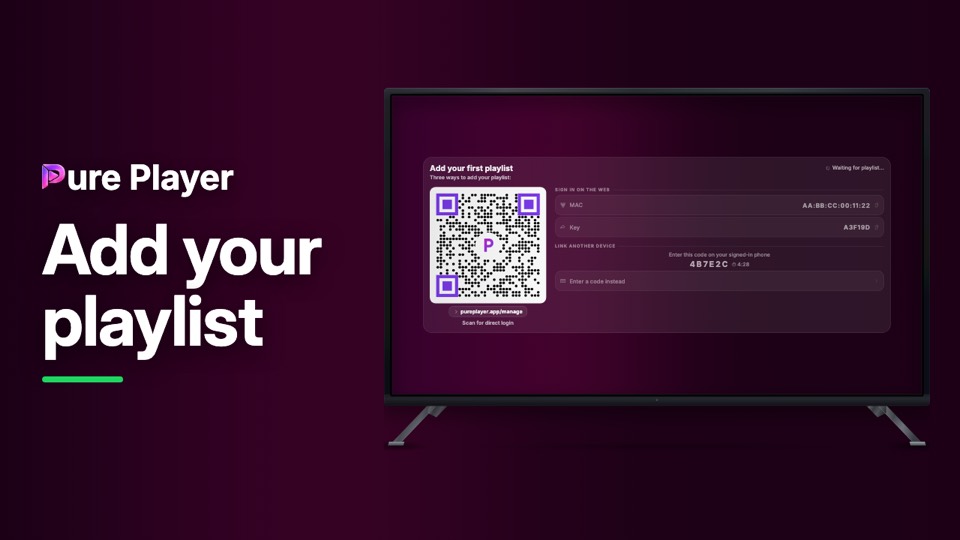
Scanning the code is the quickest if you have a phone nearby. Signing in on the web suits a TV with no camera. Linking a device you have already set up is the one that needs no typing at all.
Step by step
On your TV, open PurePlayer. The Add your first playlist screen shows all three routes at once.
Scan the code with any phone camera. The page opens already signed in, and you add the playlist there.
Or open pureplayer.app/manage on any browser and enter your MAC Address and key.
Or on a device that already has the playlist, open Manage, then Link Devices, then Connect, and type the six characters.
The TV picks it up on its own. No restart, no re-entry.
PurePlayer installed, and your own playlist. Nothing is included with the app.
Questions
Do I need a playlist to use PurePlayer?
Yes. PurePlayer is the player, and it ships with nothing to watch. You bring your own playlist and the app turns it into a library.
Which of the three ways is quickest?
Scanning, if a phone is nearby. The web page suits a television with no camera, and linking a device you already use needs no typing at all.
How long does the code stay valid?
Five minutes. After that the screen shows a new one, so an old code is never left lying around.