
PurePlayer guide
How to use the PurePlayer home screen
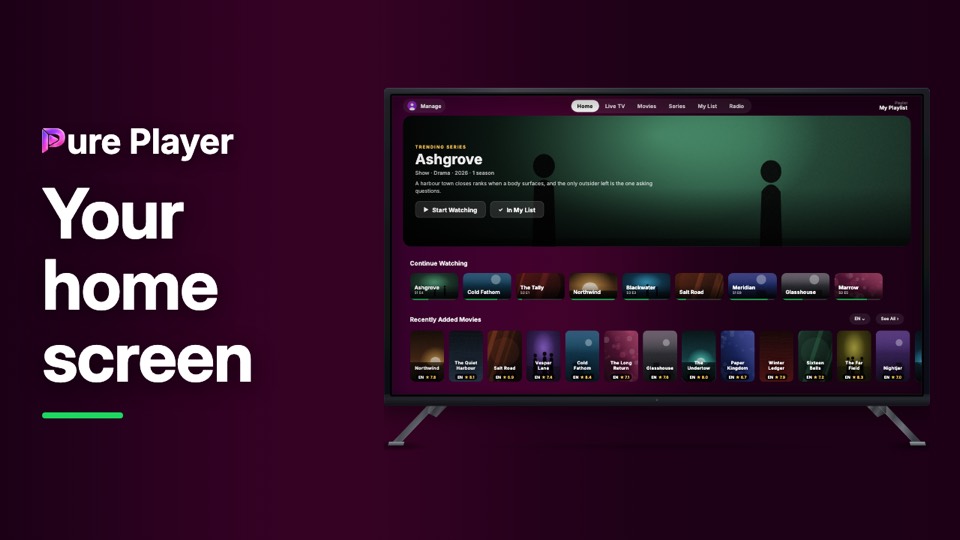
Your playlist arrives as a long list. The home screen turns it into rows you can actually walk: what you were watching, what is new, and a row built out of what you already watched.
This video goes through each row and the one control most people miss, the per row language filter, which lists the languages your own playlist carries in their own names.
Step by step
Open Home. Continue Watching is the first row, and it is filled from every linked device.
Each row has a language chip. Open it and you get All Languages first, then the languages your playlist actually carries.
Recently Added Movies and Recently Added Series keep the newest things at the top.
Further down, a row titled after something you watched suggests more like it.
Everything here comes from your own playlist. The app adds the arrangement, not the content.
PurePlayer installed, and your own playlist. Nothing is included with the app.
Questions
Why does my home screen look plain at first?
Because it has nothing to go on yet. After your first few plays a trending banner and personal suggestions appear, built from your own history.
Can I turn the rows off?
Yes. Classic Home in Manage puts you back to a plain grid of everything you have, for good.
Does Continue Watching really pick up mid film?
To the second, on any device that is linked and on the same playlist.