
PurePlayer guide
How to change the stream quality in PurePlayer
Some channels in a playlist carry more than one stream. PurePlayer lets you choose which one plays instead of taking whichever opened first.
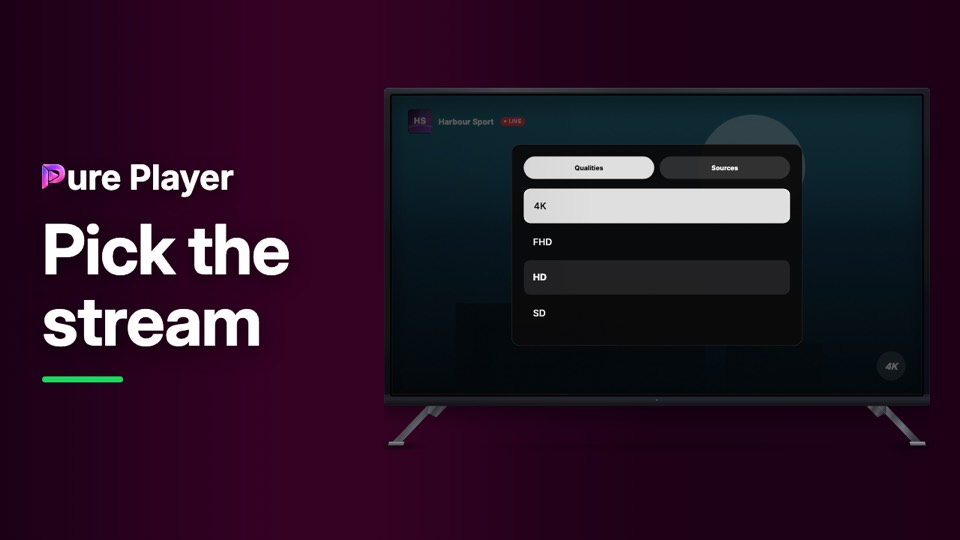
The badge in the corner tells you which one you are on. One press opens the list, and your choice stays put rather than being overruled a second later.
Step by step
While a channel is playing, press the quality badge in the corner.
The Qualities tab lists one row per quality, highest first.
The Sources tab appears when a channel has separate feeds at the same quality, so you can pick the feed itself.
Move up or down and press OK. The badge updates and keeps your choice.
Every row stays reachable. Which one works best is not always the one with the highest label.
PurePlayer installed, and your own playlist. Nothing is included with the app.
Questions
Where do the quality options come from?
From your playlist. The app lists the sources it finds for that channel and lets you choose; it does not add any of its own.
What is the badge next to the picture?
The quality you are currently watching, so you can tell at a glance which source is playing.