
PurePlayer guide
How to set parental controls in PurePlayer
Parental controls in PurePlayer are two settings, and they take about a minute. A PIN on the app itself, and a switch that clears adult content out of every screen at once.
The switch is the one worth watching. It does not filter a single list: it clears the home screen, the live list and what you already watched, all from one place. The same video also covers the subtitle language and the theme, which live on the same screen.
Step by step
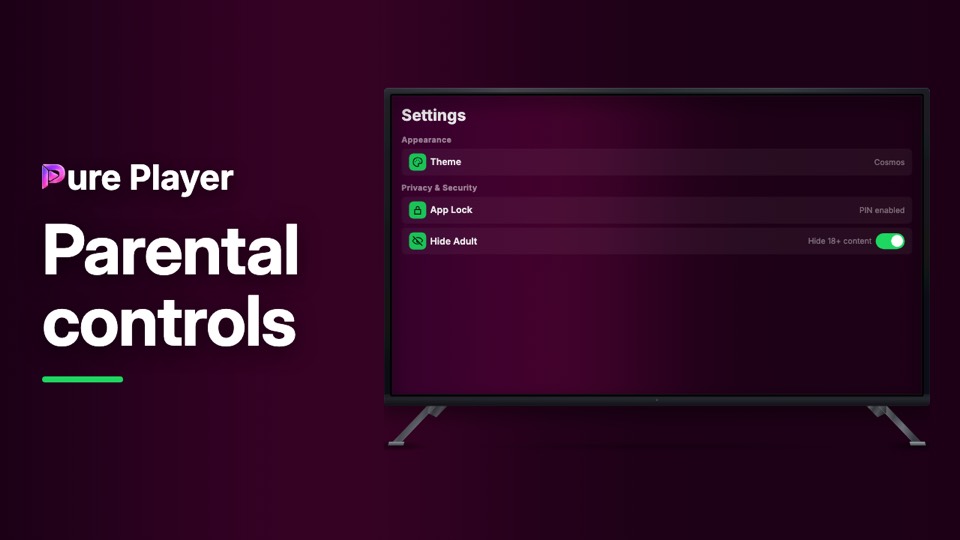
Open Settings. Under Privacy & Security you will find both controls.
App Lock asks for a four digit PIN and then asks you to repeat it. The row then reads PIN enabled.
Turn on Hide Adult, described as Hide 18+ content. It applies everywhere at once.
Under Language & Content, Subtitle Language sets one language for everything that carries it. Auto (App Language) follows the app language.
Change the subtitle track inside the player and the app keeps that as your preference.
Under Appearance, Theme switches the whole look.
PurePlayer installed, and your own playlist. Nothing is included with the app.
Questions
What does Hide Adult actually hide?
Adult content everywhere at once: Live TV, Movies, Series, Recently Added and your watch history. It is not put behind a warning, it is gone.
Is App Lock the same thing?
No. App Lock is a PIN on the whole app, asked for the moment it opens. Hide Adult is a filter. You can use either on its own.
How long is the PIN?
Four digits, and you type it twice so a slip cannot lock you out of your own app.